Editing State
BlazeTracker’s event-sourced architecture means you can correct any extraction result by editing the underlying events. Changes propagate automatically to all downstream state.
Event Editor
Click the ✏️ button on any message to open the event editor.
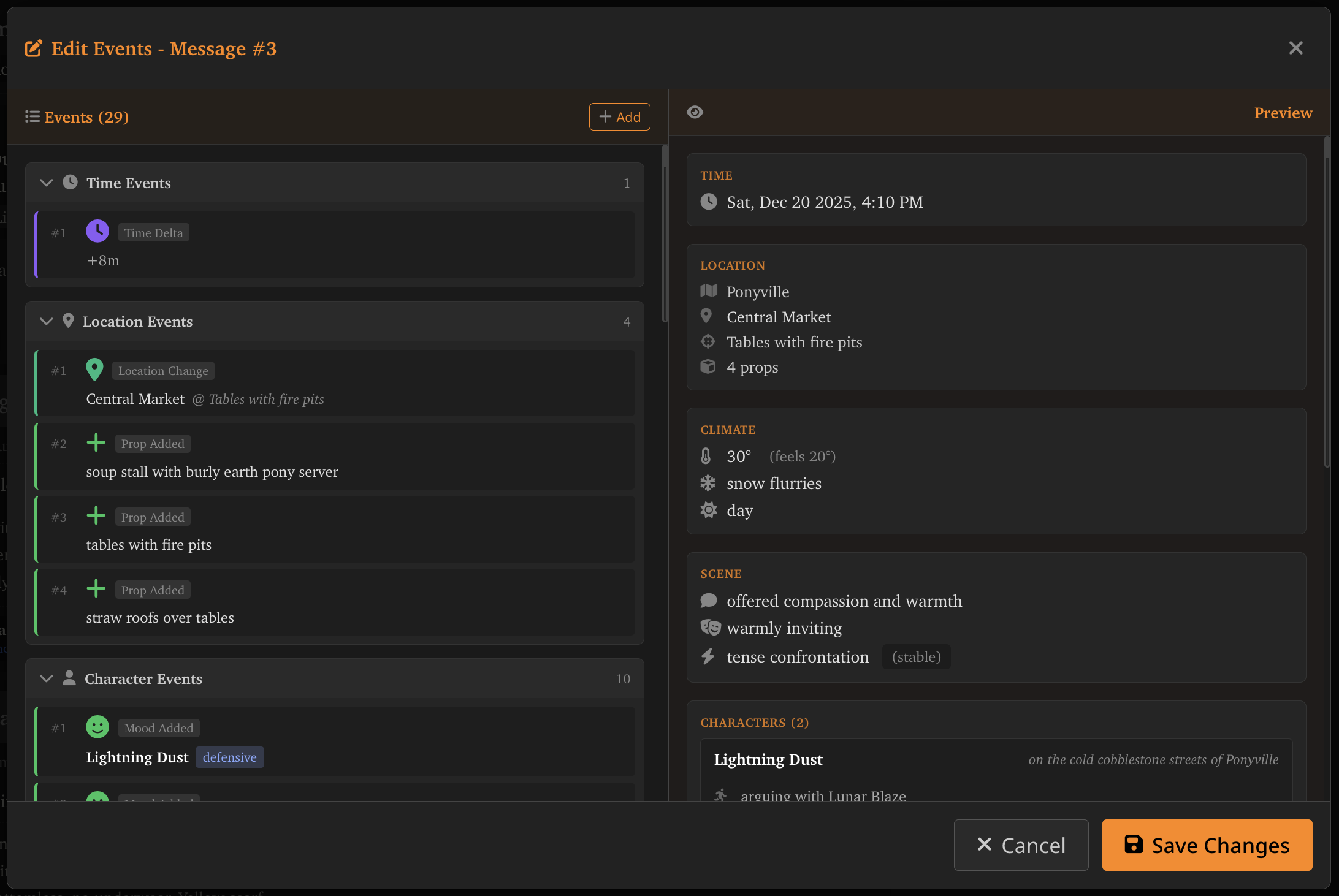
Layout
- Left panel — All events extracted from this message, grouped by type
- Right panel — Live preview of the resulting state after applying all events
Event Categories
Events are organized by type:
- Time Events — Time deltas (e.g., “+2m”, “+1h 30m”, “+2d”)
- Location Events — Area, place, and position changes; prop additions and removals
- Character Events — Appearances, departures, position changes, activity changes, mood changes, outfit changes, physical state changes
- Relationship Events — Feeling additions/removals, secret additions/removals, want additions/removals, status changes, interaction subjects
- Scene Events — Topic/tone changes, tension changes
- Narrative Events — Event descriptions
- Chapter Events — Chapter boundaries and descriptions
Editing Events
For each event you can:
- Edit the event’s data fields (e.g., change the time delta, correct a character’s position)
- Delete the event (soft-delete — it’s excluded from projection but not permanently removed)
- Add new events of any type
Live Preview
The right panel updates in real-time as you make changes. This shows you exactly what the projected state will look like with your edits applied, before you save.
Saving
When you save, your changes are persisted to the event store. All downstream state (later messages, narrative modal, injection) automatically reflects your edits.
Relationship Editor
Click Edit on any relationship in the Narrative State modal to open the relationship editor.
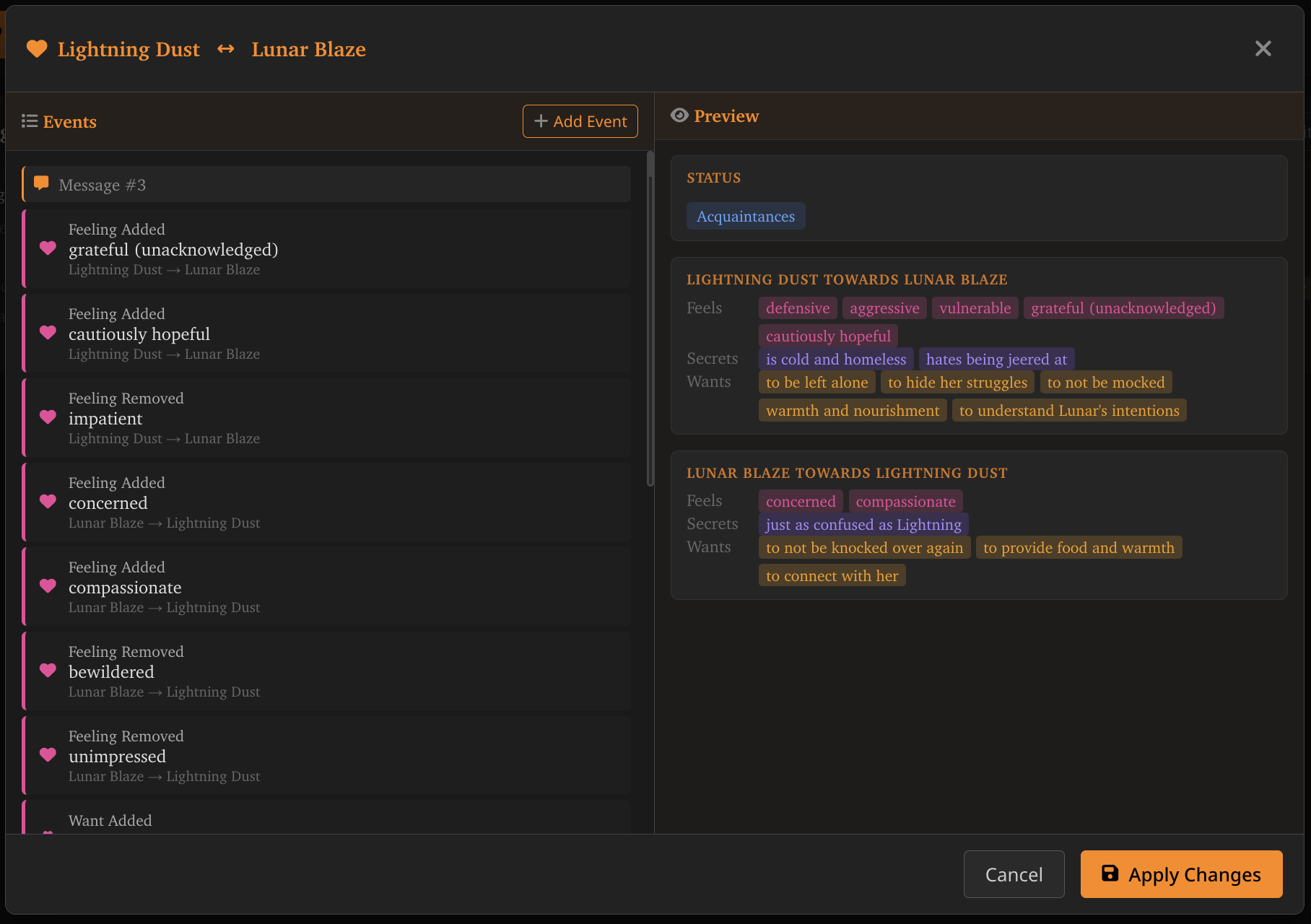
Layout
- Left panel — Full event history for the character pair, organized by message. Shows feelings added, feelings removed, wants changed, status shifts, and interaction subjects.
- Right panel — Live preview of the current relationship state as projected from those events.
What You Can Edit
- Add or remove feelings (what one character feels toward the other)
- Add or remove secrets (what one character hides from the other)
- Add or remove wants (what one character wants regarding the other)
- Change status (strangers, acquaintances, friendly, close, intimate, strained, hostile, complicated)
- Add or remove interaction subjects (what happened between them)
Common Corrections
- The tracker thinks Character A has a feeling that doesn’t match the story — remove the feeling event
- A status change happened too early — delete the status change event and add one at the correct message
- A milestone was missed — add a relationship subject event at the message where it occurred
Tips
Correcting Initial State
The first extraction often gets things wrong because it has limited context. Rather than re-extracting, open the event editor on message 1 and correct:
- Wrong time? Edit the
time:initialevent - Wrong location? Edit the
location:movedevent - Wrong outfit? Edit the
character:outfit_changedevents - Wrong relationship? Edit relationship events or use the relationship editor
When to Edit vs Re-Extract
- Edit when you know what the correct state should be and the extraction is close
- Re-extract when the extraction is significantly wrong and you’ve tuned your prompts
Editing is precise — you change exactly what’s wrong. Re-extraction re-runs the full pipeline and might change things you were happy with.
Character AKAs / Nicknames
Character AKAs (alternate names) can be viewed and edited in the snapshot editor under each character’s entry. The nickname extractor runs automatically every 8 messages to detect in-RP pet names, shortened names, and aliases. If it picks up something incorrect, you can remove the character:akas_add event from the event editor, or edit the AKAs directly in the snapshot editor.
Propagation
Because state is event-sourced, editing an event at message 5 automatically updates the projected state at messages 6, 7, 8, etc. You don’t need to re-extract downstream messages after making corrections.