First Extraction
This walkthrough takes you through your first extraction and explains what you’ll see.
Before You Start
Make sure you have:
- Installed BlazeTracker
- Created a connection profile and selected it in settings
- A chat with at least one assistant message
Running the Extraction
On any assistant message, you’ll see a fire icon (🔥) in the BlazeTracker toolbar area. Click it to start extraction.
The first extraction is an initial extraction — it establishes the baseline state for the scene. You’ll see a progress indicator cycling through each extraction phase:
- Time — Determines the current date and time in the narrative
- Location — Identifies the area, place, and position
- Forecast — Generates a 28-day weather forecast for the location (no LLM call)
- Characters Present — Identifies who’s in the scene
- Character Profiles — Extracts condensed profiles (sex, species, age, appearance, personality)
- Character Outfits — Determines what each character is wearing
- Relationships — Establishes initial relationship states between pairs
- Props — Identifies nearby objects (filtered against clothing to avoid duplicates)
- Topic & Tone — Determines the scene’s current topic and tone
- Tension — Assesses tension level, type, and direction
Reading the Compact Block
After extraction completes, a state block appears on the message:
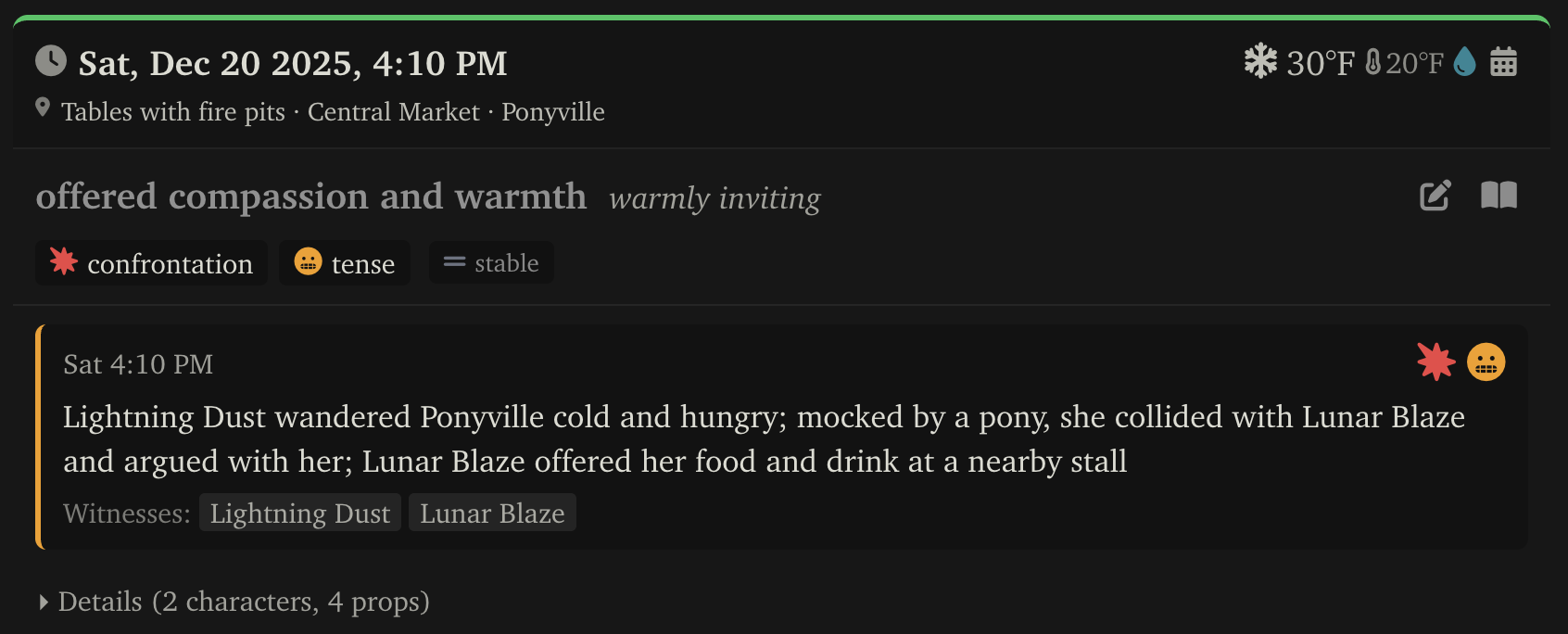
The compact block shows:
- Date and time — The narrative date and time
- Location — Area, place, and position
- Weather — Current conditions with temperature and humidity
- Scene — Topic, tone, and tension (with type and direction indicators)
- Recent events — The three most recent narrative events
Toolbar Buttons
- 📅 Calendar — Opens the weather forecast modal
- 🔥 Fire — Re-extract state for this message
- ✏️ Edit — Open the event editor for this message
- 📖 Book — Open the narrative state modal
Expanding Details
Click Details to expand the full state view:
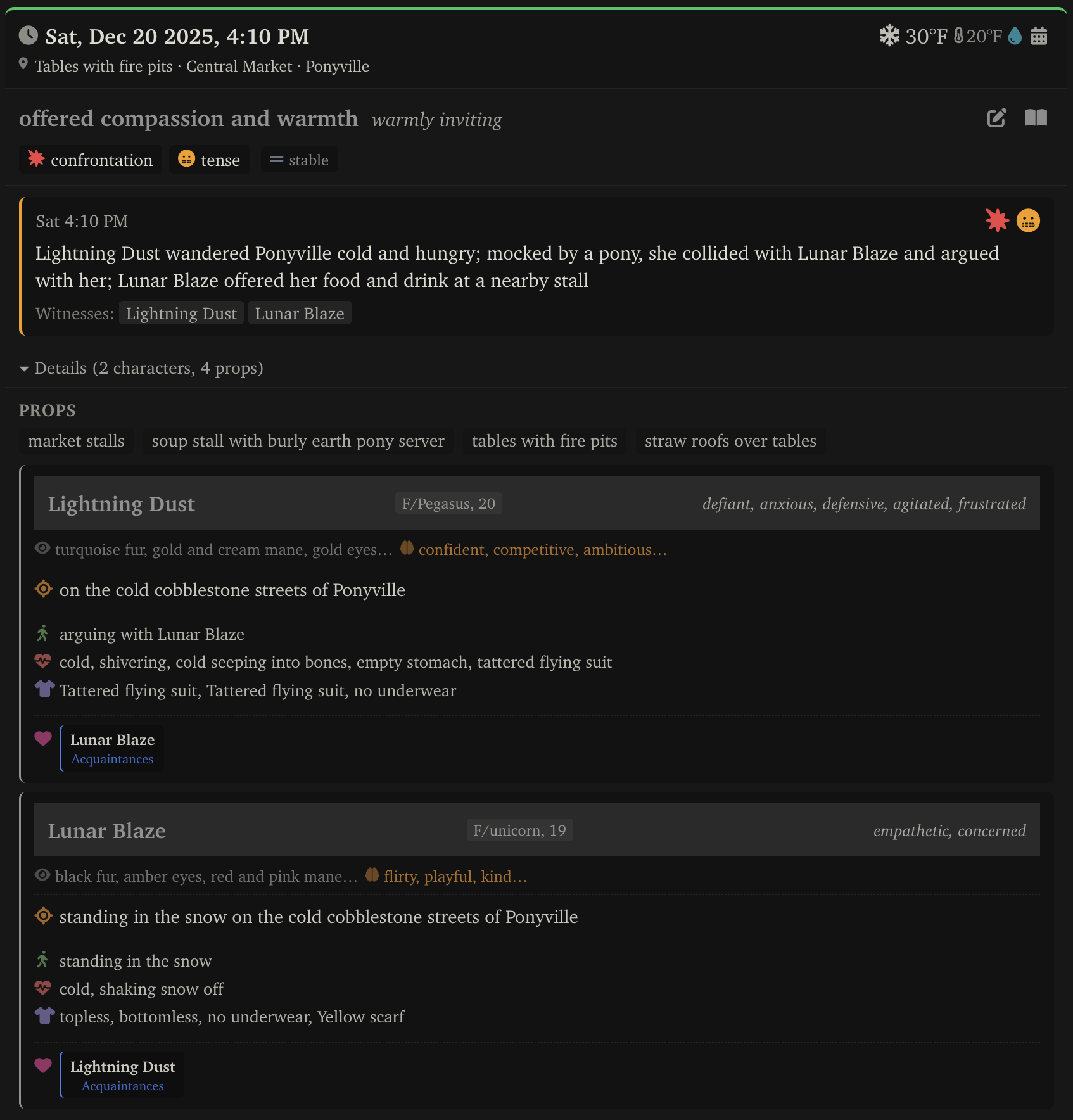
The detailed view adds:
- Nearby props — Objects in the immediate vicinity
- Character cards — Each present character with their position, activity, mood, physical state, outfit, and relationship badges
What Happens on the Next Message
When a new assistant message arrives (or you send a message with auto-extract enabled), BlazeTracker runs event extraction instead of initial extraction. Rather than establishing state from scratch, it detects what changed:
- Did time pass? → Time delta event
- Did anyone move? → Location change event
- Did someone change clothes? → Outfit change events
- Did the mood shift? → Mood add/remove events
- Did tension escalate? → Tension change event
These changes are stored as events, and current state is computed by replaying them from the initial snapshot.
Initial State is Wrong?
The first extraction makes assumptions based on limited context. This is expected.
Click the ✏️ button to open the event editor and correct any wrong assumptions — time, location, outfits, relationships. All subsequent extractions will project forward from your corrections. See Editing State for details.
Configuring What’s Tracked
If you don’t need all tracking modules, disable the ones you don’t care about in Settings > Tracking. Each disabled module is one fewer LLM call per message. See Track Dependencies for which modules depend on others.
Setting Up Character Defaults
To avoid correcting the same things every new chat, set up defaults for your persona and AI character cards. See Character Defaults.